You land in Korea, open Google Maps, and it kind of works—but directions can be incomplete or unreliable. This is widely reported as connected to South Korea’s controls and restrictions around high-precision map data. That’s why locals primarily use Korean apps like Naver Map in English (and Kakao Map) for daily navigation.
The good news: Naver Map supports English, and once it’s set up, it’s one of the most practical ways to get around. This guide on using naver map english is a do-this, tap-that walkthrough so you can navigate confidently—even if you can’t read Korean.
To get the most out of your travels, make sure to utilize the naver map english features effectively.
Table of Contents
- Why Google Maps feels “broken” in Korea
- Download Naver Map + switch to English
- How to search places (Naver map in English vs Korean)
- How to get directions (walking, subway, bus)
- Search hacks that actually work (copy/paste)
- Save places + build a simple trip list
- Navigate like a local (exits, building names, translation)
- Naver Map vs Kakao Map vs Google Maps (decision table)
- Common problems + fixes
- FAQs
- Is Naver Map available in English?
- How do I change Naver Map language to English?
- Does Google Maps work in Korea?
- Which is better: Naver Map or Kakao Map?
- Can I get subway and bus directions in Naver Map?
- Do I need a Korean SIM card?
- Can I use Naver Map on desktop in English?
- What’s the #1 tip for searching?
- Quick checklist
Why Google Maps feels “broken” in Korea
When navigating in Korea, the naver map english app stands out for its user-friendly interface and reliable directions. It’s essential to familiarize yourself with its features to maximize your experience.
Google Maps is available in South Korea, but full navigation features can be limited compared to what you’re used to in other countries. Major reporting ties this to how South Korea regulates high-precision map data and the ongoing debate about exporting that data to foreign servers.
In practice, travelers often experience:
• Less reliable turn-by-turn navigation
• Less complete local place details in some areas
So yes—Google Maps can still be helpful for quick lookups, but for on-the-ground navigation, Korean apps (especially Naver Map and Kakao Map) are usually more dependable.
For seamless navigation, ensure you have the latest version of the naver map english app installed on your device. This will help you access all the latest features and updates.
Download Naver Map + switch to English
Step 1: Install the app
• iPhone: “NAVER Map, Navigation” on the App Store.
• Android: “NAVER Maps, Navigation” on Google Play.

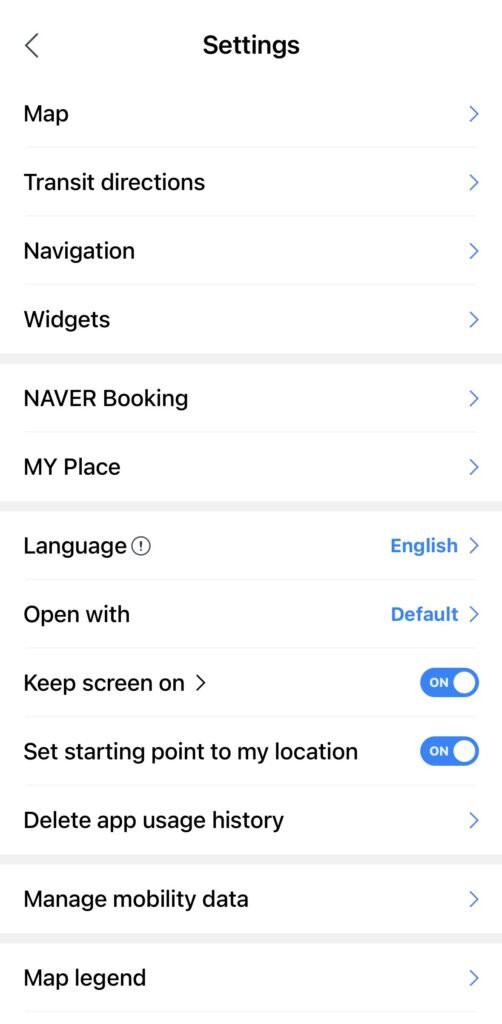
Step 2: Change language to English
- Open Naver Map.
- Tap the Menu (☰) or your profile icon.
- Tap Settings (⚙️).
- Find Language / 언어.
- Choose English and confirm.
- Restart the app if prompted.
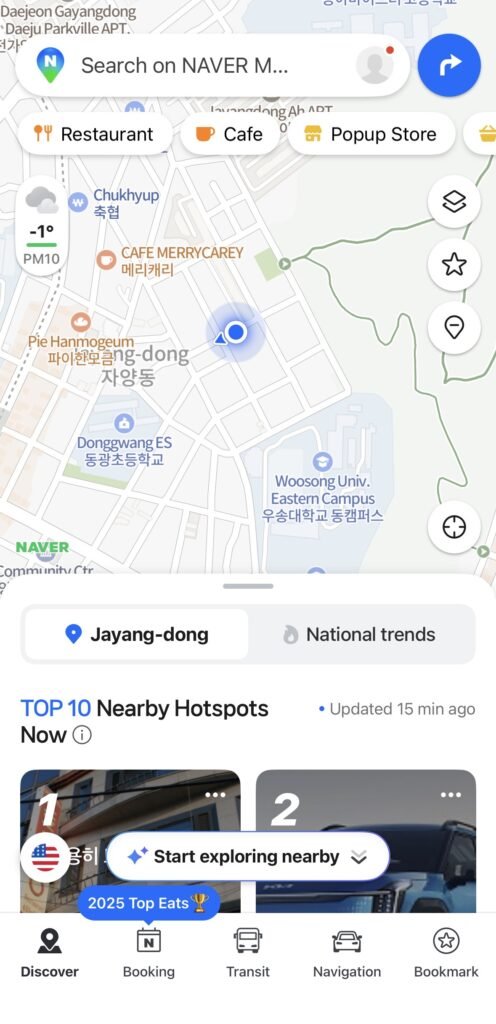
Step 3: 30-second interface tour
- Search bar (top)
- Current location button (crosshair)
- Place card (tap a place pin/name to open)
- Directions button (inside the place card)
- Saved/Bookmarks (star icon or “Saved”)
How to search places (Naver map in English vs Korean)
Why English search sometimes fails
Even when your interface is in English, many listings are stored primarily in Korean. English names may be missing or spelled differently (romanization). That’s why a place you’re sure exists might not show up when you type it in English.
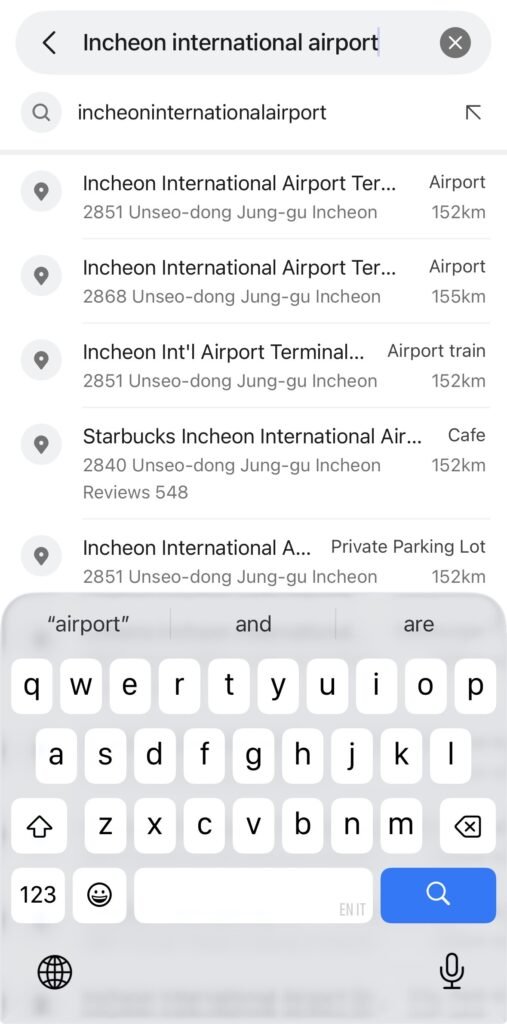
Try English first (works for major spots)
- Incheon International Airport
- Myeongdong Station
- Seoul Station
- Lotte World
When English fails, use Korean text
Copy/paste either the Korean place name (Hangul) or the full Korean address from your booking message. Naver Map is extremely good at finding Korean text—even if you don’t understand it.
Pro Tip: Write the English address to Papago or Google translator (English to Korean)and copy the Korean version of the address to paste it to Naver Map.
How to get directions (walking, subway, bus)
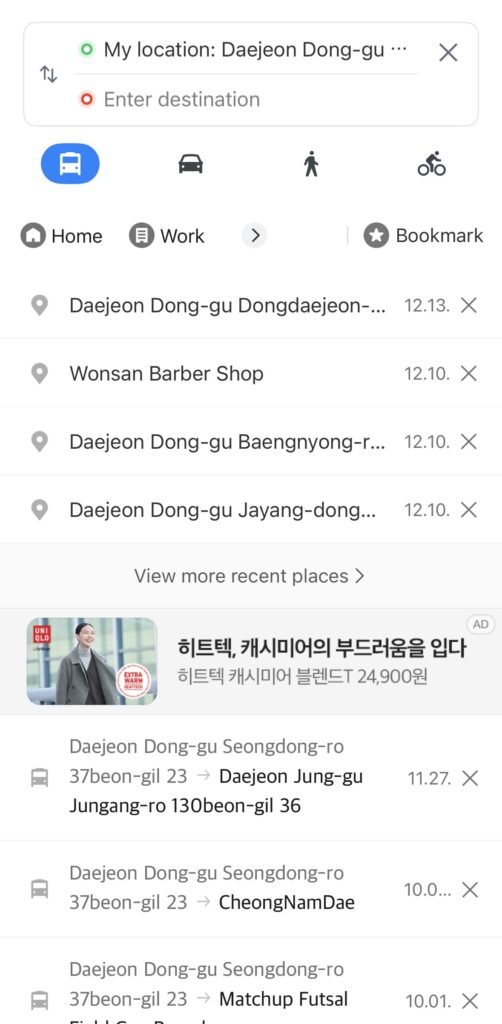
Set your start and destination
- Search your destination (or tap it on the map).
- Tap Directions.
- Set the start point to Current location (or your saved hotel).
Many travelers recommend starting with naver map english for navigating complex urban areas, as it provides detailed instructions and real-time updates.
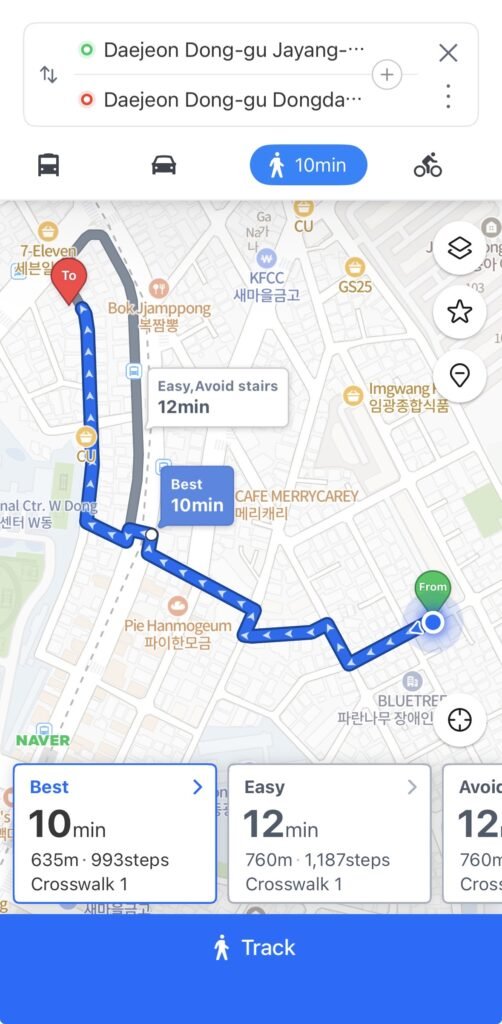
Walking directions
Choose the walking icon, review the route, then tap Start/Navigation if available. Walking mode is best for the last stretch from a subway exit to a cafe, restaurant, or attraction.
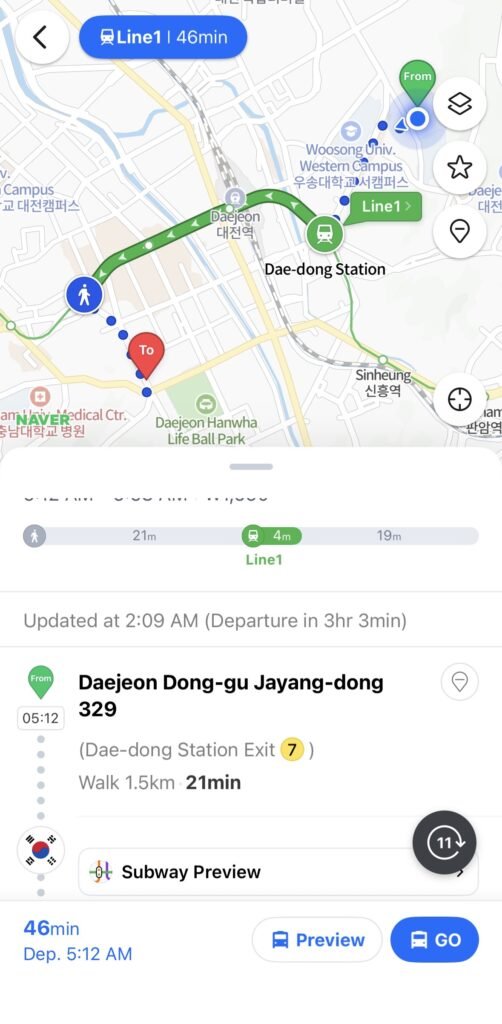
Subway directions
Choose public transit/subway and focus on: line colors, transfer stations, and total travel time. Tap a suggested route to see detailed steps.
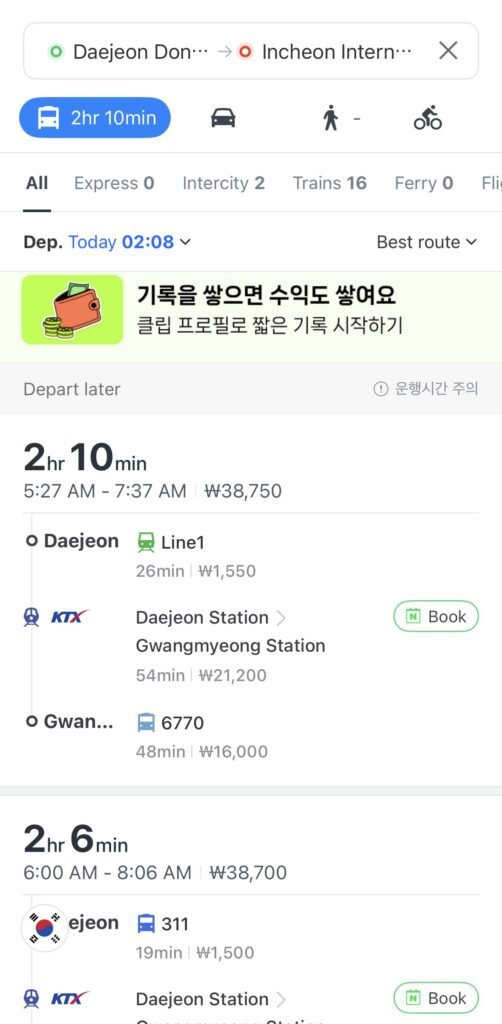
Bus directions
Choose bus/public transit to see bus numbers, boarding stops, and where to get off. Bus stop names may show in Korean and English.
Search hacks that actually work (copy/paste)
Hack 1: Copy the Korean place name
By taking advantage of the naver map english options, you can easily locate nearby restaurants, shops, and other points of interest.
If English search fails, copy the Korean name from Google results, an Instagram profile, a blog, or your booking message, then paste it into Naver Map.
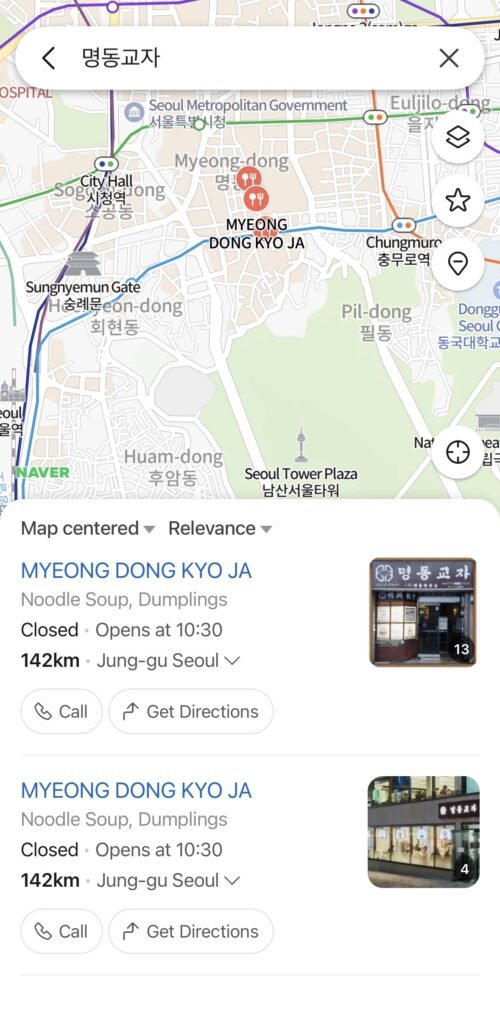
- Copy the Korean name (example: 명동교자).
- Paste it into Naver Map’s search bar.
- Open the correct result and confirm by checking the address area.
Hack 2: Copy the full Korean address (most accurate)
If you have the full Korean address line, it’s often more precise than a place name. Copy the whole line and paste it into Naver Map.
- Copy the full Korean address from your booking message.
- Paste it into Naver Map search.
- Confirm the pin matches the area and nearby landmarks.
Hack 3: Use romanization as backup only
Romanized spellings can vary (e.g., different ways to spell the same Korean name). If romanization fails, ask your hotel/host for the Korean address and save it.
Save places + build a simple trip list
Save a place
- Open the place card.
- Tap Save/Bookmark (star icon).
- Add it to a folder like “Hotel”, “Seoul Day 1”, or “Food”.
*make sure to login first to save a place*
Build a daily route fast
Create a folder for your day (example: “Seoul – Day 2”), save 5–10 stops, then tap each saved place and hit Directions as you go.
Navigate like a local (exits, building names, translation)
Use subway exits + building names
In Korea, people often meet using exit numbers (example: “Gangnam Station Exit 10”) and big building names. Your flow: find the station, pick the right exit area, then switch to walking mode for the last few minutes.
Translate when needed
If reviews or menus are in Korean, use your phone’s built-in translation (camera or text) to quickly understand key info. Don’t overthink it—the goal is simple navigation.
Naver Map vs Kakao Map vs Google Maps (decision table)
| Situation | Use Naver Map | Use KakaoMap | Google Maps in Korea |
| First-time tourist | Best default for navigation (especially with copy/paste Korean). | Great backup app. | OK for quick lookups; navigation can be limited. |
| Transit directions | Strong subway/bus routing. | Also strong. | Can be less integrated locally. |
| Finding small local places | Best with Korean names/addresses. | Also strong with Korean search. | Local detail can be weaker in some areas. |
Common problems + fixes
Nothing shows when I type in English.
Search the nearest station in English, then zoom around. For specific places, copy/paste the Korean name or address.
The app is still in Korean after switching language.
Recheck Settings → Language, update the app, and fully close/reopen it.
My GPS dot is way off.
Enable location permissions for Naver Map. Step outside for a clearer signal.
I can’t find my Airbnb/hotel by name.
Copy the Korean address from your booking confirmation and paste it into Naver Map.
Multiple pins with the same name.
Confirm by district (gu) and neighborhood (dong), and cross-check the area around your hotel.
Directions don’t start from my current location.
Tap the start point field and set it to Current location. Wait a few seconds for GPS to refresh.
Subway exits confuse me.
Pick the exit closest to your destination area, then use walking mode from the exit to the exact place.
I don’t want to type every time.
Save your hotel and key stations, and build daily lists inside Saved/Bookmarks.
FAQs
Is Naver Map available in English?
Yes. You can switch the interface language to English in Settings.
How do I change Naver Map language to English?
Open Menu → Settings (⚙️) → Language / 언어 → English. Restart if prompted.
Does Google Maps work in Korea?
It works for some lookups, but navigation can be limited. Use Naver Map/Kakao Map for more reliable directions.
Which is better: Naver Map or Kakao Map?
Both are excellent. Start with Naver Map (English interface) and keep Kakao Map as a backup.
With naver map english, you can explore Korea’s vibrant culture and avoid common pitfalls associated with navigation in a foreign country.
Can I get subway and bus directions in Naver Map?
Yes. It’s widely used in Korea for transit navigation.
Do I need a Korean SIM card?
You need mobile data for smooth searching and routing (SIM/eSIM/pocket Wi‑Fi all work).
Can I use Naver Map on desktop in English?
The mobile app is the easiest for navigation. On desktop, you can use browser translation tools, but it’s not as convenient.
What’s the #1 tip for searching?
Copy/paste Korean names or addresses. It solves most search failures.
Quick checklist
Setup
- Download Naver Map (iOS/Android).
- Menu → Settings (⚙️) → Language (언어) → English.
- Confirm the interface switches to English.
Before you leave your hotel
- Save your hotel as a bookmark.
- Save the nearest subway station.
- Save 3–5 places you plan to visit today.
While you’re out
- Try English search for big places first.
- If it fails, copy/paste Korean name or full Korean address.
- Use Subway for speed, Bus for finer connections, Walk for the last stretch.
Using naver map english can greatly enhance your exploration, ensuring you don’t miss out on key attractions. To understand the whole process with a video, you can see this video.